From the timecard to the paycheck without retyping hours
Employees log hours on their phones against jobs, work orders, and equipment. The office approves them, and payroll is calculated from the approved hours.
Six steps from logged hours to payroll
The same hours move from the phone to review, to timecards, to payroll, without anyone retyping them.
- 1
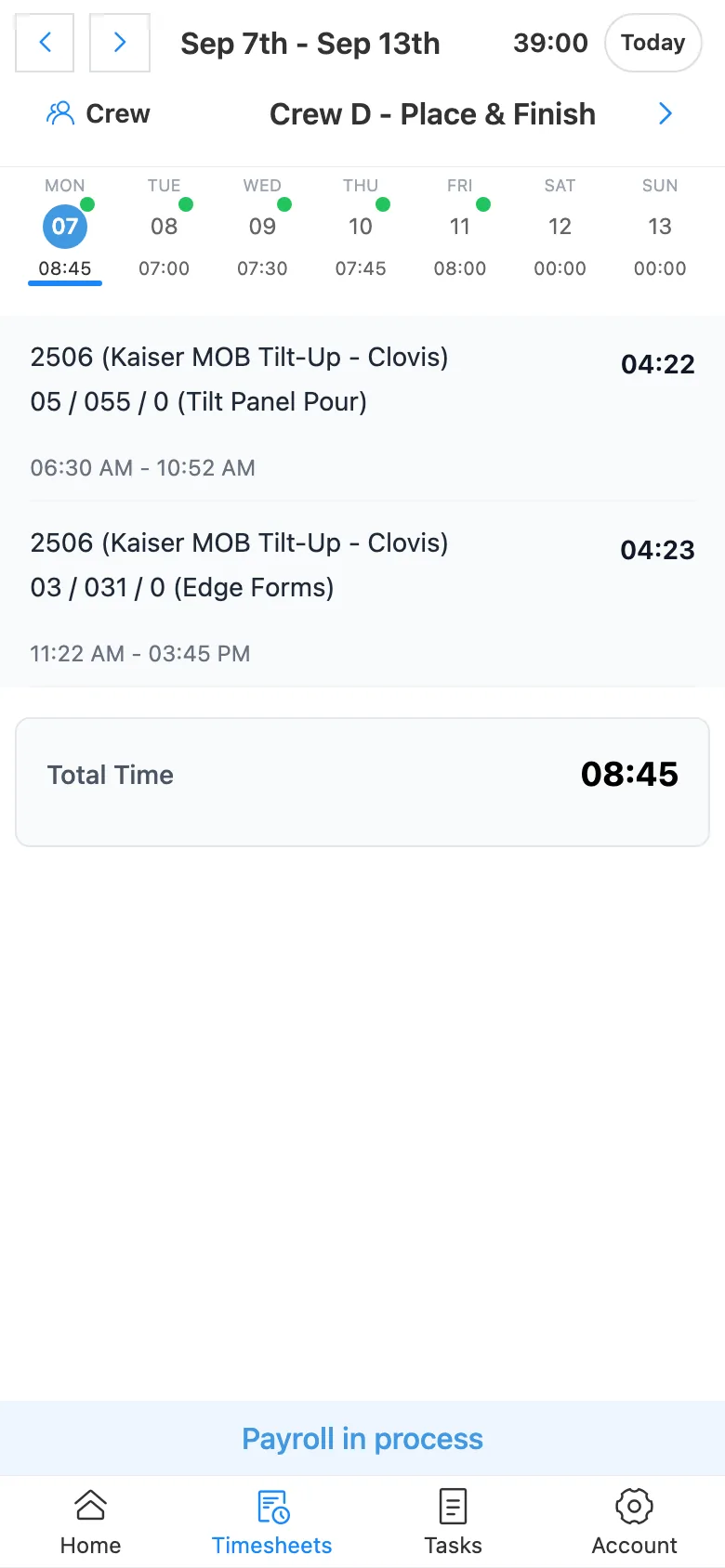
Employees log their time
Each entry is charged to a job and cost code, a work order, a piece of equipment, or general and administrative. Employees can type or say the entry, add notes, and attach photos from the phone camera.
- Job site photos and notes on the entry, so the office can see the work behind the hours before approving
- Voice or typed quick entry fills in the job, cost code, start time, and hours
- Equipment, material, company pay codes, and time off on the same entry
- Minimum lunch length enforced on the phone, so meal breaks are recorded before the next entry starts
- 2
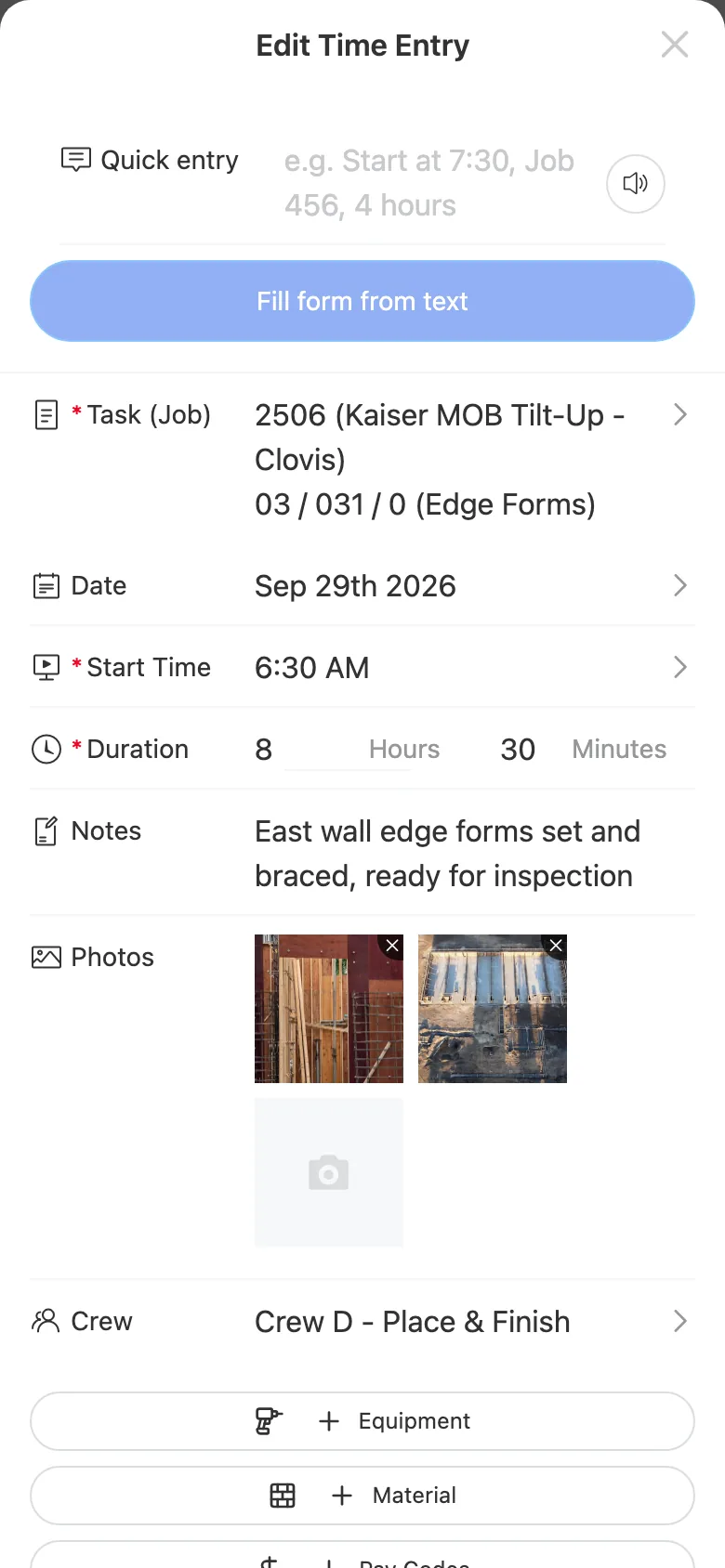
Foremen clock in their crews
A foreman sees the crew on the phone and clocks each member in from there. Crew members can also log their own hours.
- Crews with one or more foremen
- Clock in a crew member with notes
- Tasks list for jobs, work orders, and equipment
- 3
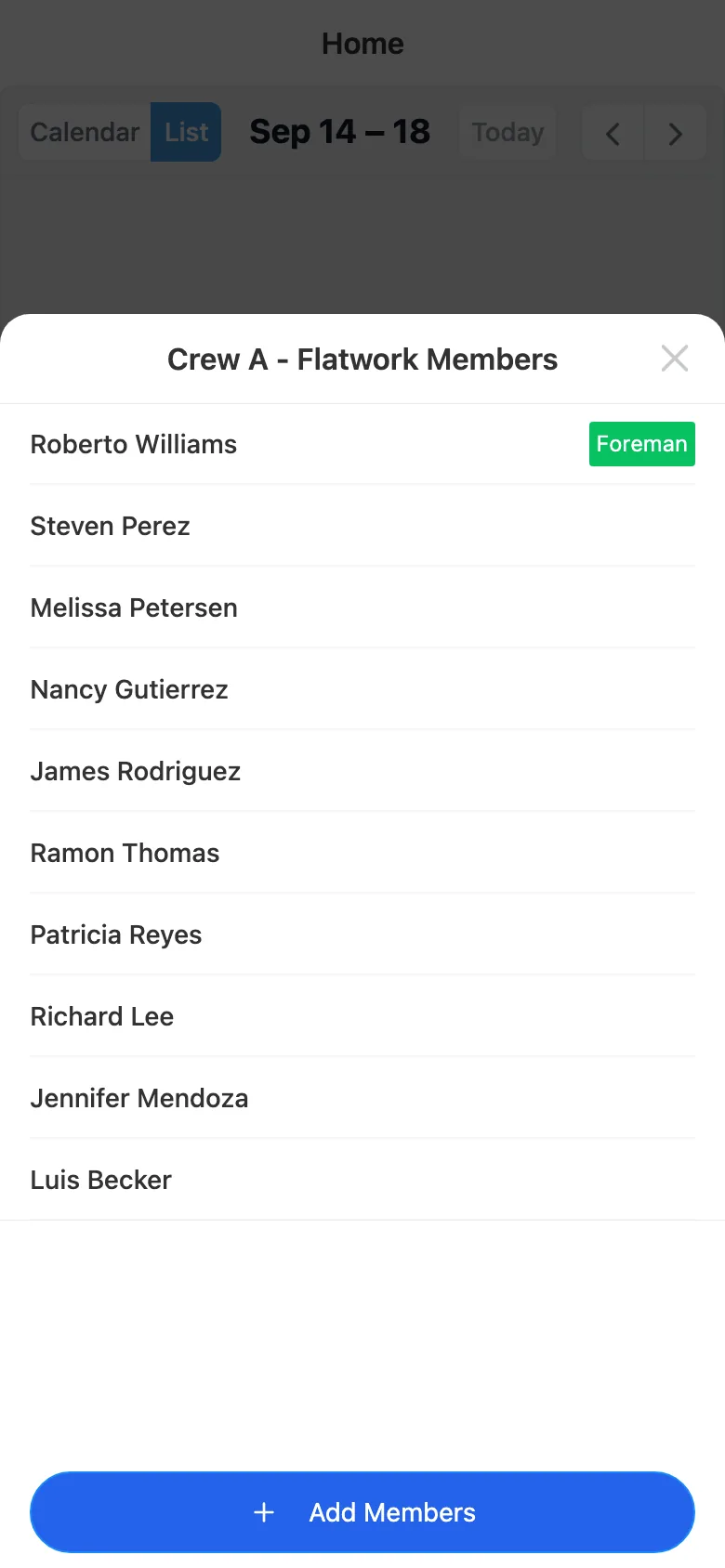
Employees clock out from the phone
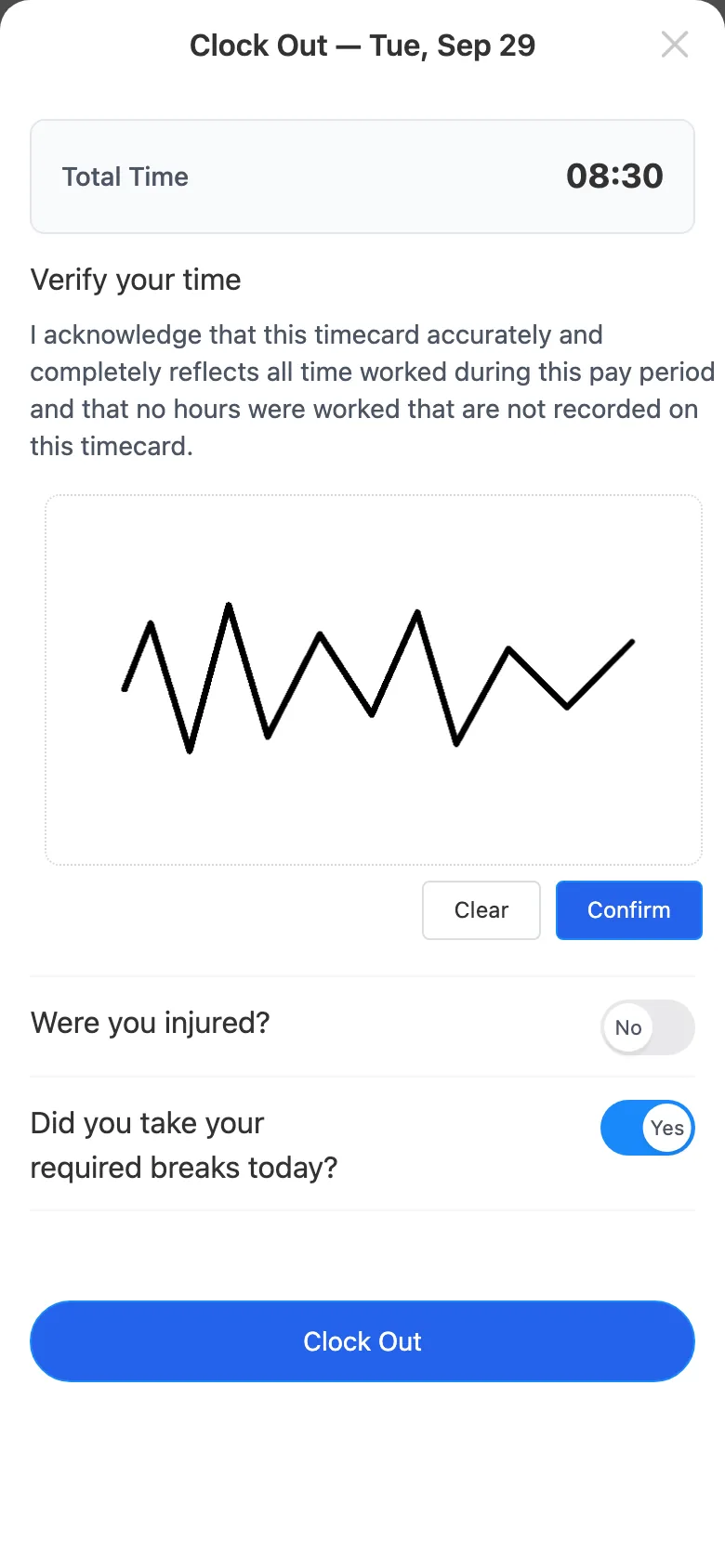
At the end of the day the employee reviews the total hours, signs to verify the time, and answers the clock-out questions. The office sees every answer for the day on one screen, with missed breaks and injuries flagged.
- Signature confirming the hours are complete and accurate
- Daily injury and meal break answers on record for every employee, plus your own questions
- Reminder on the phone when a clock-out is missed
- Clock-in and clock-out locations on a map, to confirm crews were on the job site
- 4
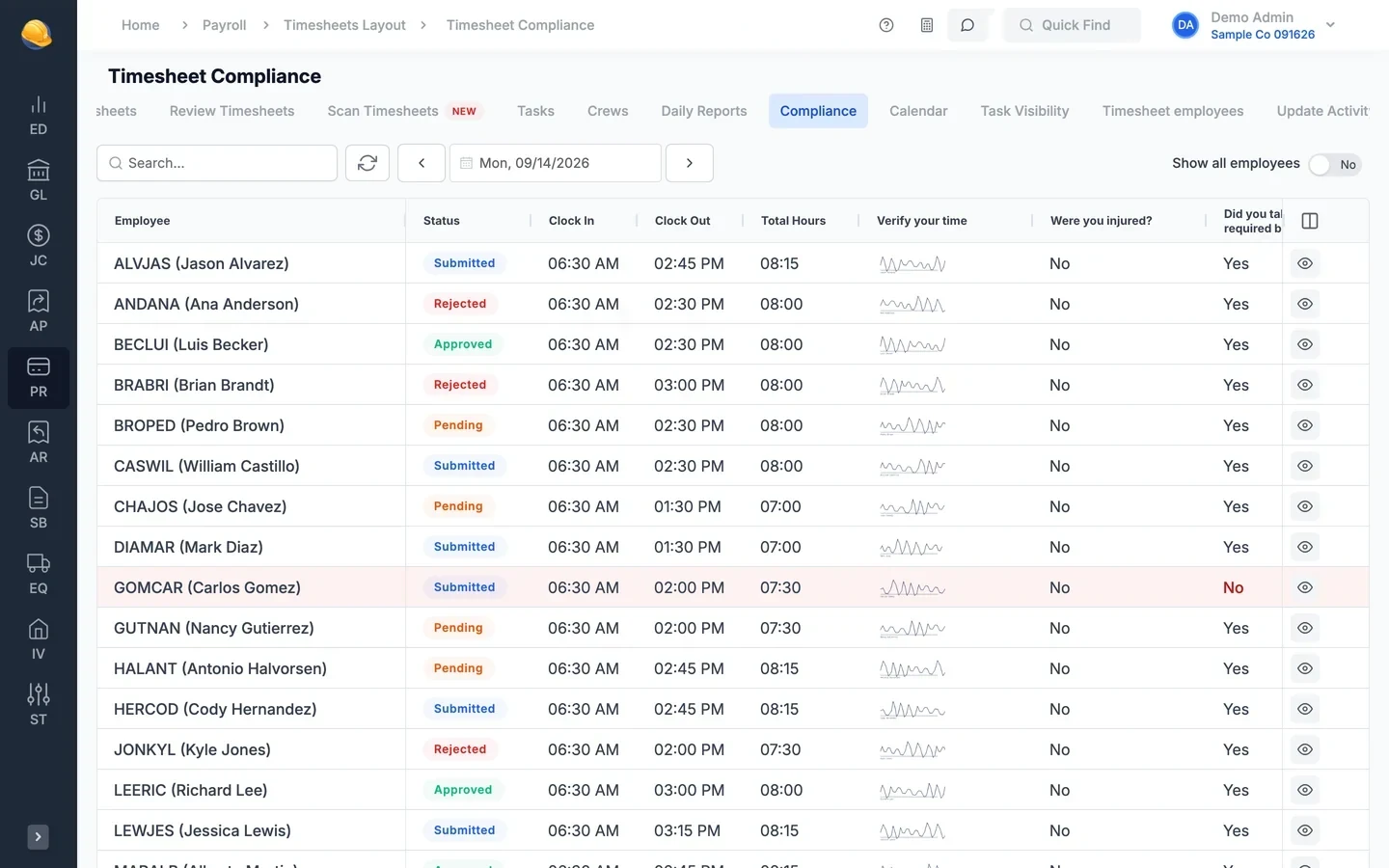
The office reviews, approves, or rejects
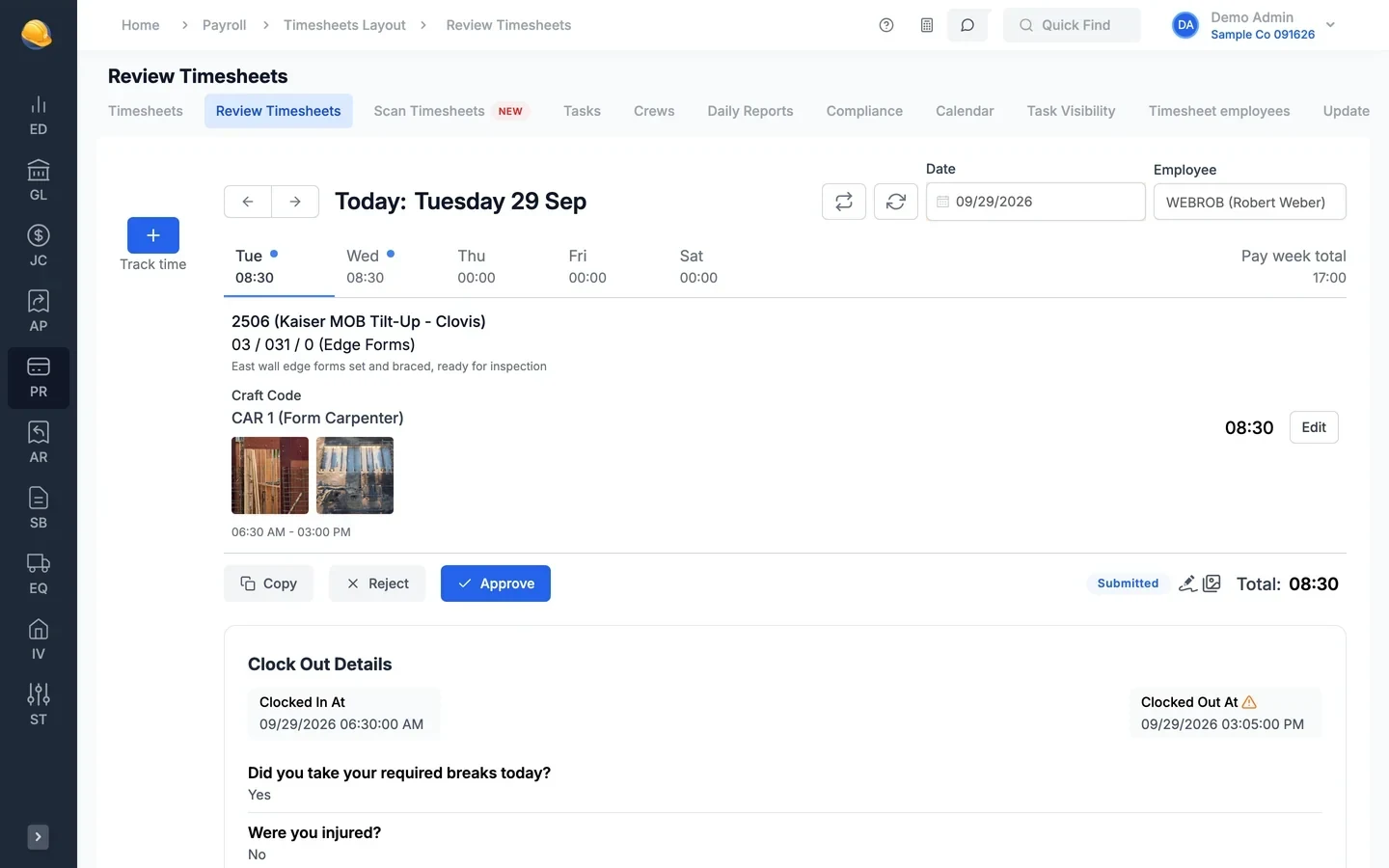
Timesheets appear in Construction Partner by employee and day, with the photos and notes from the field. Approve one or approve all, or reject with a reason and the employee can fix and resubmit from the phone.
- Job site photos shown next to each entry
- Clock-in and clock-out times, clock-out answers, and the signature
- Paper timesheets can be scanned and imported
- 5
Approved hours become timecards
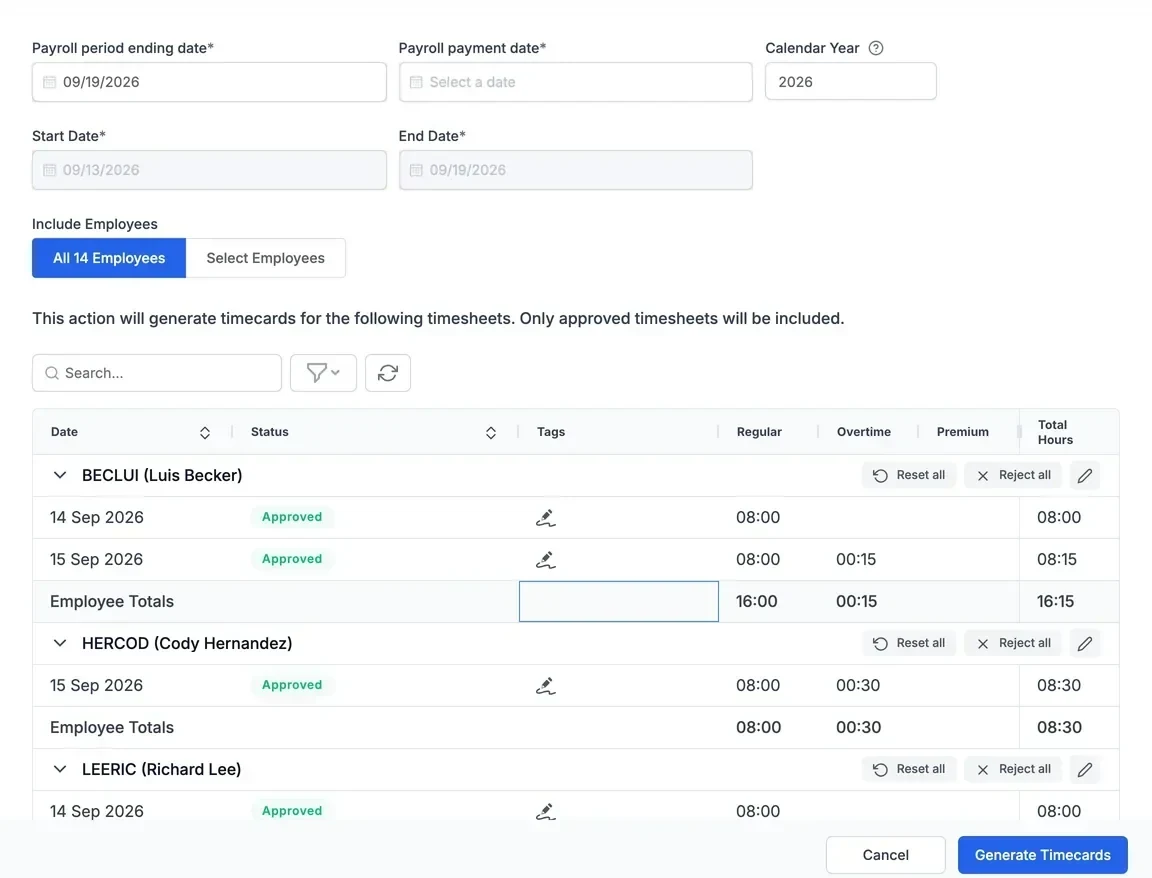
Generate timecards for the pay period. Only approved timesheets are included, and each hour keeps its job, cost code, work order, or equipment.
- Regular and overtime split by workweek
- Daily and weekly overtime rules for California, Alaska, Colorado, Kentucky, and Nevada, plus federal
- Pay rates, union and prevailing wage rates, and workers comp classes filled in from setup
- 6
Payroll is calculated from the timecards
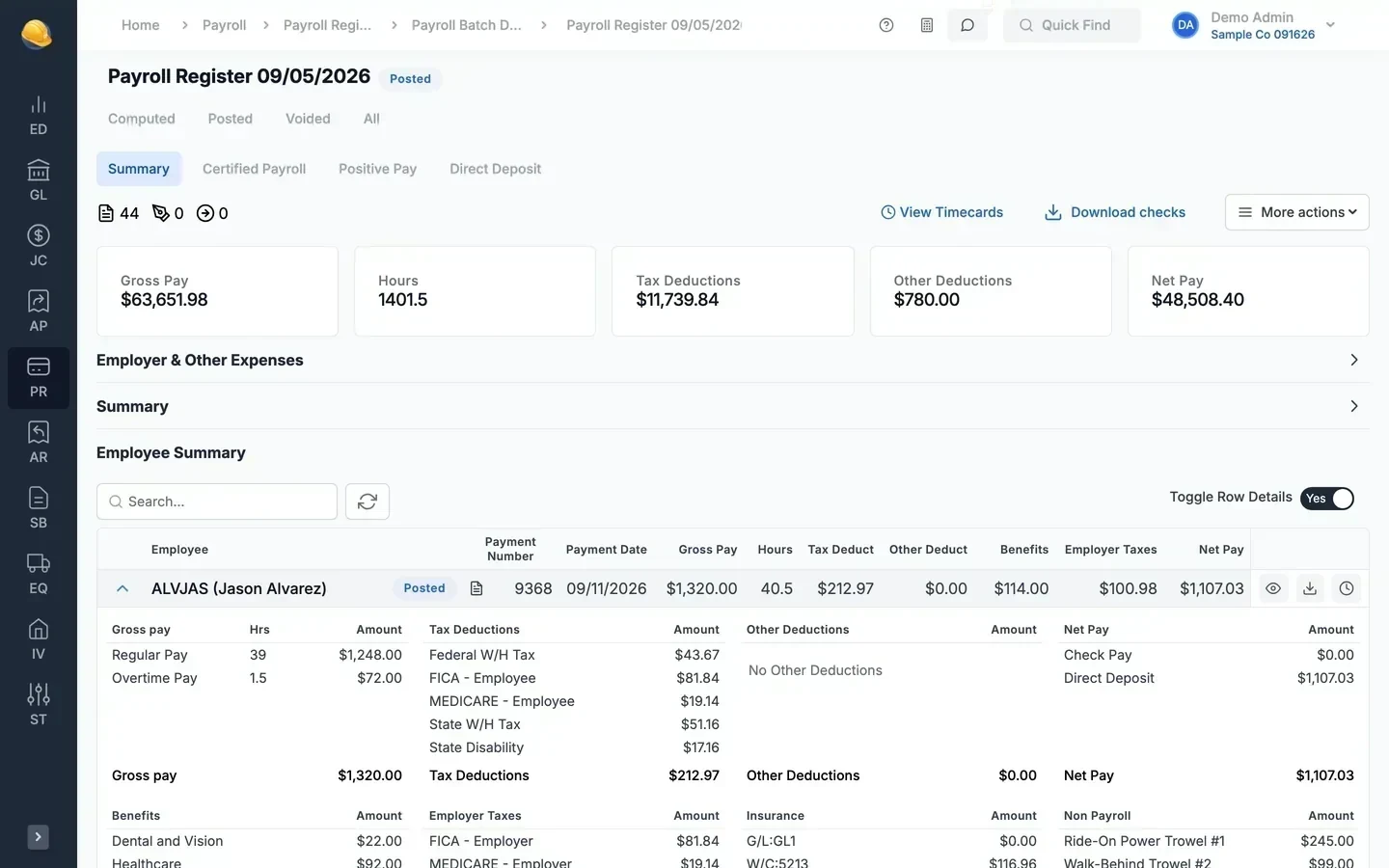
Compute the batch and payroll calculates gross pay, taxes, deductions, and benefits from the timecard hours. Posting sends labor to job cost, equipment, service billing, and the general ledger.
- Checks and direct deposit
- Certified payroll reports from the same hours
- Labor and burden posted to each job and cost code
What each role clocks into
Clocks in crew members and switches their cost codes during the day.
Logs own hours by typing or saying the entry.
Clocks into a work order, and the hours carry to the service invoice.
Clocks into a repair order or maintenance code on a unit.
Logs time from a desktop browser and requests time off.
What's inside
Clock-in and clock-out locations shown on a map during timesheet review. Optional per company.
Job site photos on each entry, shown to the office next to the hours during approval.
Say the start time, hours, and job in English or Spanish.
Break entries and an optional minimum lunch length.
Unit hours and material on the same entry as the labor.
Company pay codes, time off policies, and accrual balances.
Photos or PDFs of paper sheets read into timesheet rows for review.
Crews clock in and out on site as they work, or enter their hours after the shift.
Group employees under a foreman, who clocks them in and adds or removes members from the phone.
Foremen answer company questions for each job their crew worked, such as delays or weather.
Every clock-out signature and answer for the day on one screen, with missed breaks and injuries flagged.
Working days, start time, lunch and break length, and a rounding interval for start times.
No app store and no per-user fees
Open it in the phone's browser and add it to the home screen. Timekeeping is part of Construction Partner, and adding employees does not change your price.
See it run your kind of work
A 30-minute walkthrough of job cost, payroll, and billing with someone who knows construction accounting.